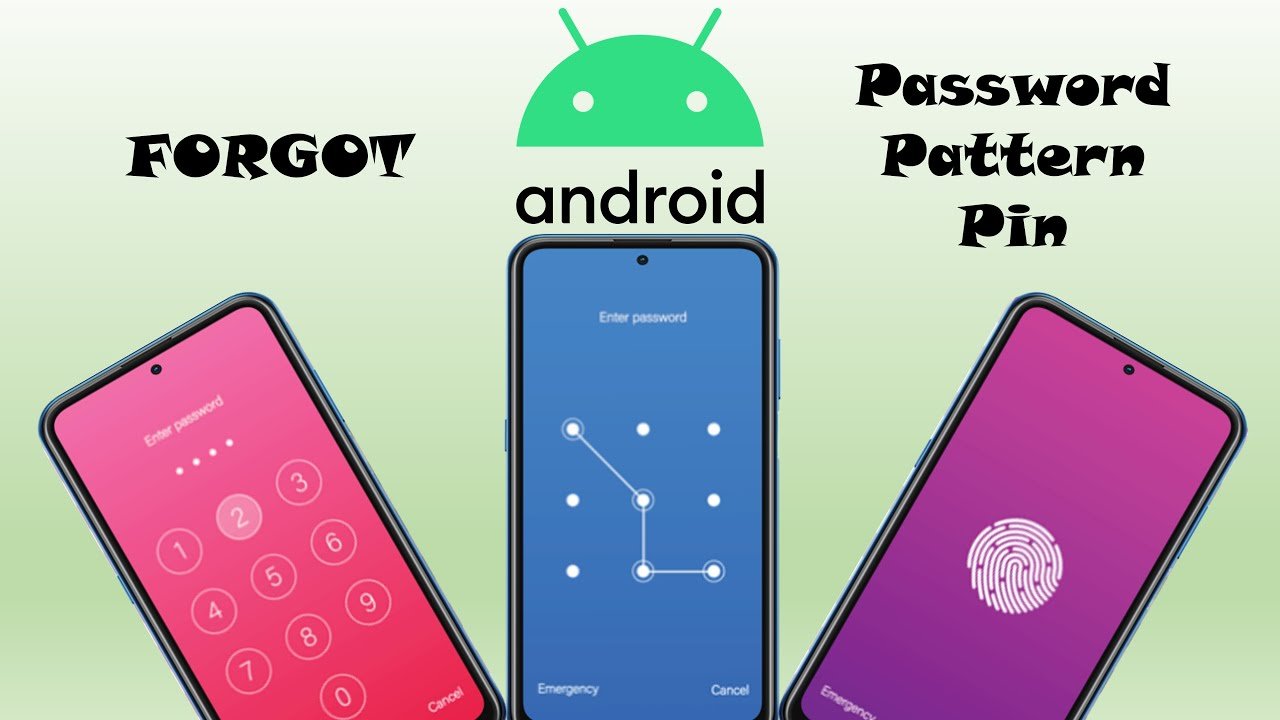
Forgetting your mobile password can be stressful. You cannot open apps, access contacts, or even answer calls. But you do not need to panic. Every mobile system has built-in recovery options to reset or unlock the device safely. The right trick depends on your phone type and security settings.
1. Understand the Lock Types
Before you start, know what kind of lock you forgot.
- Pattern lock
- PIN or password
- Fingerprint or face lock linked to a backup PIN
Each type has different recovery methods. You must use the one that matches your situation.
2. Unlock Android Phones with Google Account
If your phone runs Android, you can reset it using your linked Google account.
- Enter the wrong password several times until “Forgot pattern” or “Forgot password” appears.
- Tap it.
- Sign in with your Google account.
- Set a new password.
This only works if you have internet access and your Google account is active on the phone.
3. Use Find My Device for Android Unlock
Google’s Find My Device feature helps you unlock or reset remotely.
Steps:
- Go to Find My Device from another phone.
- Sign in with the same Google account connected to your locked phone.
- Select Erase Device.
- The phone will erase all data and remove the password.
After this, you can set it up again and create a new lock.
4. Use Find My iPhone for Apple Devices
iPhone users can unlock through Find My iPhone.
Steps:
- Sign in to Find My iPhone using your Apple ID.
- Choose the locked iPhone.
- Tap Erase iPhone.
- This will delete all content and settings, including the forgotten passcode.
- Set it up again with your Apple ID and create a new passcode.
5. Unlock Samsung Phones with Find My Mobile
Samsung provides its own unlock service.
Steps:
- Visit Find My Mobile on another device.
- Sign in with your Samsung account.
- Select your phone.
- Tap Unlock.
- Confirm your password.
Your phone will instantly unlock, and you can create a new PIN.
6. Use Safe Mode to Disable Third-Party Lock Apps
If you locked your phone using a third-party app, use Safe Mode.
- Hold the Power button.
- Tap and hold “Power Off.”
- Select “Safe Mode.”
- Open Settings and uninstall the lock app.
- Restart normally.
This trick removes the custom lock without erasing data.
7. Factory Reset as a Last Option
If nothing else works, you can perform a factory reset.
For Android:
- Power off the phone.
- Press and hold Volume Up + Power (some phones use Volume Down).
- Select Wipe data/factory reset.
- Confirm and restart.
For iPhone:
- Connect your phone to a computer with iTunes.
- Choose Restore iPhone.
This method erases all data, so use it only if you cannot access your account.
8. Use Smart Lock (For Android Users)
Smart Lock helps avoid future lockouts.
You can set trusted places, devices, or faces that unlock your phone automatically.
Example:
- At home, your phone stays unlocked.
- When paired with your smartwatch, it stays open.
This feature reduces the risk of forgetting passwords again.
9. Backup and Sync Regularly
To protect data before using reset methods:
- Turn on automatic backups.
- Sync contacts, photos, and files to your cloud account.
If you ever forget the password, you can restore everything after resetting.
10. Create Easy-to-Remember Yet Secure Passwords
After unlocking, create a new passcode that is secure but memorable.
Tips:
- Avoid birthdays or simple numbers.
- Combine letters and numbers.
- Use phrases you can easily recall.
Example: “MyDog2025” or “CallMeAt9”.
11. Use Password Managers
Store all your passwords in a secure password manager.
These apps safely remember your PINs, patterns, and account passwords.
This prevents future lockouts.
12. Extra Tips to Avoid Forgetting Passwords Again
- Write down new passwords on paper and keep it in a safe place.
- Set reminders to update your password every few months.
- Enable fingerprint or face recognition for quick unlocking.
- Keep your Google or Apple ID active and accessible.
Common Mistakes to Avoid
- Trying random passwords repeatedly. It may temporarily lock your phone.
- Installing unknown unlock apps. Many are fake and risky.
- Ignoring backup options before factory reset. You could lose your data.
When to Contact Support
If none of these tricks work, contact your phone manufacturer’s support team. Provide proof of ownership, and they can guide you through official unlock procedures.
Final Words
Forgetting your mobile password is common, but easy to fix with the right method. Android and iPhone both have secure recovery options. Keep your account details updated and enable backup features. With proper setup, you can always regain access to your phone safely.